Volume Definition Editor
The Volume Definition Editor is the primary dialog for creating and editing volume definitions. It provides a dynamic term builder where you construct a formula from line references and arithmetic operations.
Opening the editor
To open the Volume Definition Editor:
Expand the Volumes node under a tunnel in the project tree.
Double-click an existing volume definition to edit it, or right-click the Volumes node and choose Add Volume to create a new one.
Basic properties
At the top of the dialog you configure:
Name – a descriptive name for the volume definition (e.g., “Overbreak”, “Lining Zone”)
Color – the hatch color used when previewing the volume region on the section canvas. Click the color button to open the color picker.
Method – choose between Applicable Length and Average Areas for volume computation. See Mass Table for details on each method.
Preset – a dropdown of common volume configurations. Selecting a preset populates the term builder automatically. See Volume Presets for descriptions of each preset.
Term builder
The core of the editor is the term builder – a scrollable list of term rows. Each row defines one component of the volume formula.
Adding and removing terms
Click Add Term to append a new term row at the bottom of the list.
Click the Remove button on a term row to delete it. You cannot remove the last remaining term.
Term types
Each term has a type that determines which area function is applied. The four available types are described below.
Area(LineA, LineB) – Intersection area
Returns the area where both LineA and LineB polygons overlap simultaneously. This is the standard area measurement for comparing two profiles.
Example: Area(Excavation, Final Lining) returns the area that is inside both the measured excavation and the design lining – effectively the “good” excavation that matches the design.
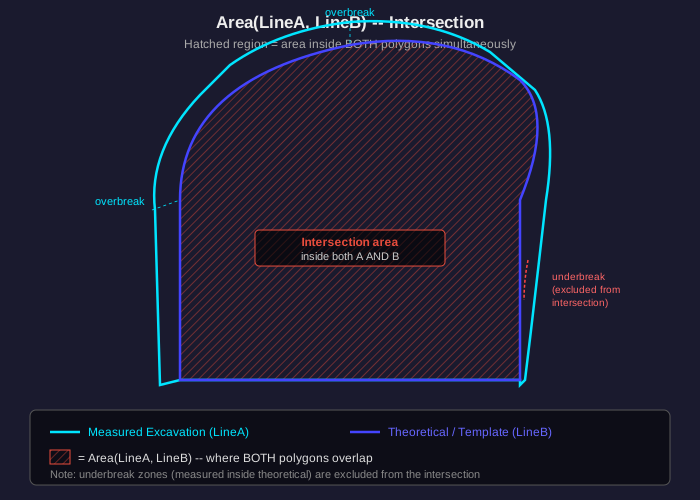
Area(LineA, LineB) computes the intersection of two polygons. The hatched region shows where both profiles overlap. Areas of overbreak (measured outside theoretical) and underbreak (theoretical outside measured) are excluded.
Length(LineA) – Polyline perimeter
Returns the total length along a line in meters. This is not an area – it measures the perimeter of a polyline. Useful for computing shotcrete surface coverage or lining perimeter.
Example: Length(Excavation) returns the perimeter of the measured excavation profile at that section.
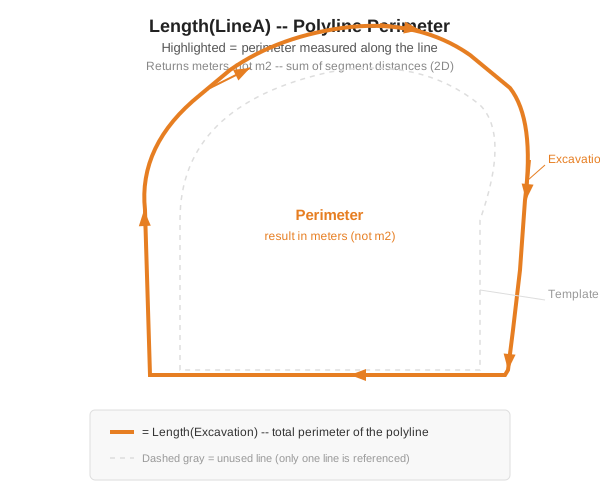
Length(LineA) measures the total distance along the polyline. The result is in meters, not square meters.
EnclosedArea(LineA) – Single polygon area
Returns the total area enclosed by a single closed line, computed using the Shoelace formula. Only one line is needed.
Example: EnclosedArea(Excavation) returns the full cross-sectional area inside the measured excavation profile.
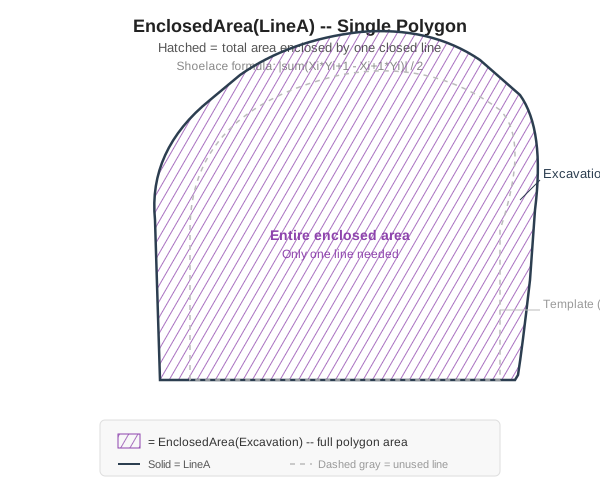
EnclosedArea(LineA) computes the total area inside a single polygon using the Shoelace formula.
DiffArea(LineA, LineB) – Difference area
Returns the area inside LineA that is outside LineB. This produces a ring-shaped region between two polygons – the zone that belongs to one profile but not the other.
Example: DiffArea(Excavation, Final Lining) returns the lining zone – the area of the excavation that lies outside the final lining profile.
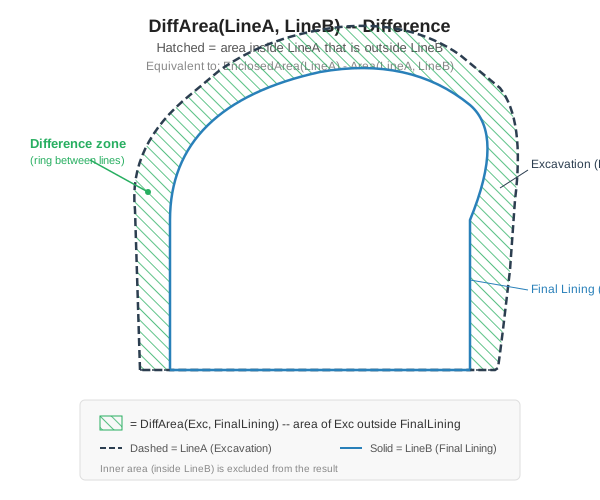
DiffArea(LineA, LineB) computes the area inside LineA that is outside LineB, producing a ring between two concentric polygons.
Operations between terms
When a formula has more than one term, an operation dropdown appears before each subsequent term:
Add (+) – the term’s value is added to the running total
Subtract (-) – the term’s value is subtracted from the running total
The resulting formula is evaluated left to right. For example, a definition with three terms might produce:
Area(Excavation, Final Lining) + DiffArea(Excavation, Shotcrete) - EnclosedArea(Invert)
Line selection
Each term row contains one or two line dropdowns (depending on the term type):
Line A – always visible. Select a measured line definition or a template line definition.
Line B – visible only for
AreaandDiffAreaterm types, which require two lines.
The dropdowns are populated from the tunnel’s measured line definitions and template line definitions.
Preview
Click Preview to evaluate the current formula against the active cross-section. The result is displayed as:
A numeric area value in the Result label (in m2)
A hatch overlay on the section canvas: green hatching for positive area regions, red hatching for negative (subtracted) regions
The preview overlay remains visible until you close the dialog or modify the definition.
Calculate All
Click Calculate All to evaluate the formula across all cross-sections (or a station range) and display the results in the Mass Table.
Clipping levels
The bottom of the dialog contains clipping level controls. See Clipping Levels for full details.
Additive constant
The Constant field allows you to specify a fixed value that is added to every section’s computed area. This can be used for systematic corrections or to account for known offsets.
Applying changes
Apply – saves the current definition and marks the project as modified. The dialog remains open for further editing.
Close – closes the dialog. If you have unapplied changes, they are discarded.